
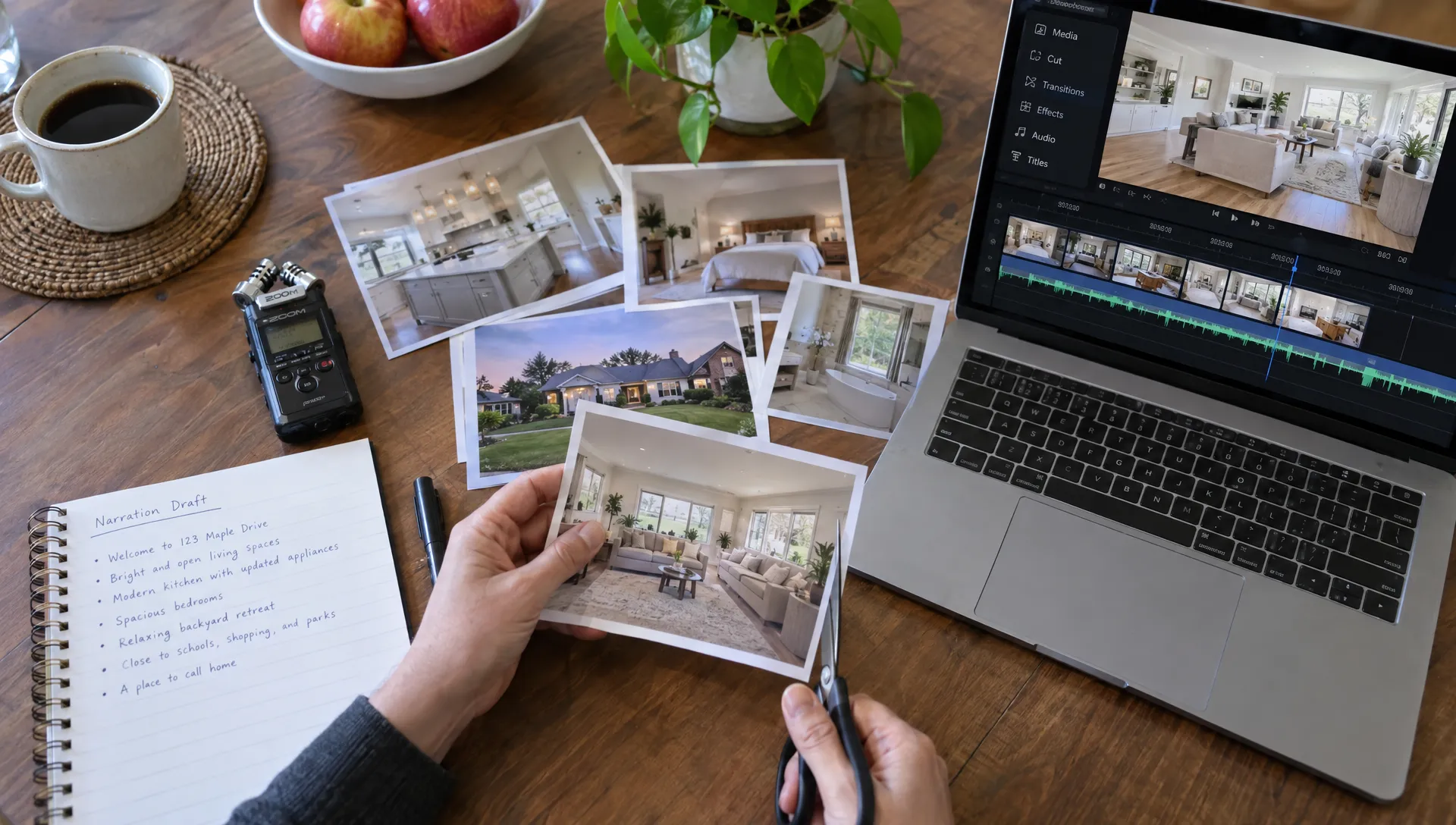
How to Turn Listing Photos Into a Video Buyers Will Watch
You can turn listing photos into video without filming a walkthrough. The useful version does more than move between attractive rooms. It helps buyers understand the property, notice its strongest verified features and decide whether to book a viewing.
The process is straightforward: select the photographs, arrange a guided visit, write a short script and add restrained motion. The main challenge is making the video engaging without implying anything the photographs cannot prove.
Choose between a manual edit and an automated workflow
A general video editor gives you control over each crop, transition and caption. An automated tool reduces assembly work. Both approaches still need accurate source material and a final review by someone who knows the property.
| Approach | What you do | Best suited to | Main limitation |
|---|---|---|---|
| General video editor | Import photos, set timing, record narration and position text yourself | Bespoke edits and precise visual control | More manual work, especially across multiple formats |
| Automated listing-video tool | Supply photos and verified details, then review the generated edit | Repeatable production across several listings | Generated text, crops and motion still need checking |
| AI image-to-video animation | Generate movement within individual photographs, then assemble the clips | Selective animation of suitable images | Can distort architecture or invent unseen details |
Automation and animation are different. A tool can automate a simple photo-based edit without generating new views of the property. That is often the safer starting point.
A filmed walkthrough remains a separate option. It can show real movement between rooms, something a photo-based video cannot reliably reconstruct.
How do you turn listing photos into video without footage?
1. Select a small set of accurate photographs
For a first edit, try eight to twelve distinct images. This is a working range, not a platform requirement. Include enough to explain the home without showing three nearly identical angles of the same room.
Choose a strong opening image, the main living space, kitchen, bedrooms, bathroom and any relevant outdoor area. Include an entrance or connecting space when it helps explain the layout. Use the highest-resolution originals available, not screenshots downloaded from a listing page.
Check exposure, sharpness and consistency. Remove duplicates, personal documents, visible access codes and photographs that no longer reflect the property's condition. Confirm you have permission to reuse the images in video and advertising.
Keep retouching factual. Adjusting exposure is different from removing a neighboring building or concealing damage. Disclose material alterations and label virtual staging on the affected images. Keep original views available so buyers can distinguish existing features from proposed presentation.
For an off-plan listing, if you use a custom 3D-printing service to produce a physical architectural model, photograph it separately and label it “scale model.” Do not present it as a completed building.
2. Arrange the images like a guided visit
To turn listing photos into video that buyers can follow, organize the sequence around the property rather than the order in which the files were delivered.
Open with the most useful visual reason to keep watching. That might be a living room opening onto a terrace, a distinctive exterior or a well-planned kitchen. Then establish the entrance and move through the principal spaces in a plausible order.
A simple sequence might be: exterior, entrance, living room, kitchen, bedrooms, bathroom, terrace and closing image. You can begin with the strongest room before returning to the entrance, but make the shift clear.
Do not imply that two rooms connect unless you have verified the layout. Avoid simulated doorway transitions between unrelated photographs. A clean cut is more honest than an invented journey through a wall.
If the layout is difficult to explain, direct buyers to the floor plan rather than asking animation to fill the gaps.
3. Write the script before setting the timing
Each scene should communicate one useful point. Describe a verified feature or explain how the space works. Avoid repeating what the viewer can already see, such as “Here is the kitchen.”
For a hypothetical two-bedroom apartment, a short script could read:
This two-bedroom apartment opens into a living and dining area with direct access to the terrace. The separate kitchen has space for a breakfast table. Both bedrooms are reached from the hallway, with the bathroom alongside them. Contact the agent for the floor plan or to arrange a viewing.
Use that structure only when the photographs and property details support every statement. Do not infer orientation, quietness, travel times or usable floor area from an image.
When you turn listing photos into video, read the script aloud before editing. A sentence that looks concise on the page may still need several seconds to sound natural. Shorten the script rather than speeding up the voice to fit.
For a first version, aim for roughly 30 to 45 seconds. Treat that as an editing constraint, not a promise of better performance. Remove secondary features if they crowd out the main selling point.
4. Choose the narration and secure consent
Your own voice can make the presentation feel personal. Record in a quiet room, keep your distance from the microphone consistent and listen for background noise before recording the full script.
A cloned voice can reduce repeated recording, but get explicit consent from the person whose voice is cloned. Record what the permission covers, including the intended channels and duration of use. Do not clone a colleague, seller or public figure simply because you have a recording of them.
An AI voice avoids recording sessions. Check pronunciation of place names, street names and property terminology. Listen to the full export, not just the voice preview.
Whichever option you choose, keep the narration calm and factual. If you turn listing photos into video for several language markets, review each translated script separately. Check number formats, units and local terminology with a fluent speaker.
Be transparent about synthetic narration or a cloned presenter, following your local rules and the requirements of the publishing platform. Keep music below the speech and use audio licensed for the intended channels, including paid advertising if applicable.
5. Add motion without changing the property
Start with movement that preserves the original image: a slow crop, a modest zoom or a gentle pan within the photograph. These techniques add pace without generating new architecture.
Generative motion needs closer inspection. An apparent camera move may invent the side of a kitchen island, widen a doorway or change what is visible through a window. A convincing result is not necessarily an accurate one.
If your chosen tool accepts motion instructions, ask it to preserve walls, openings, fixtures and furniture positions. Keep the movement small. Instructions reduce ambiguity, but they do not guarantee a faithful result.
Whenever you turn listing photos into video using generative animation, compare each clip with its source photograph. Pause at the beginning, middle and end. Watch for drifting window frames, changing room proportions, duplicated furniture and unstable reflections.
Reject any clip that changes the apparent property. Use a static image with restrained motion instead. Disclosure does not make a misleading alteration acceptable.
Where generated movement is used, make that clear in the presentation or accompanying description as appropriate to local and platform rules. Do not label a synthetic sequence as a filmed walkthrough.
6. Add readable captions and restrained branding
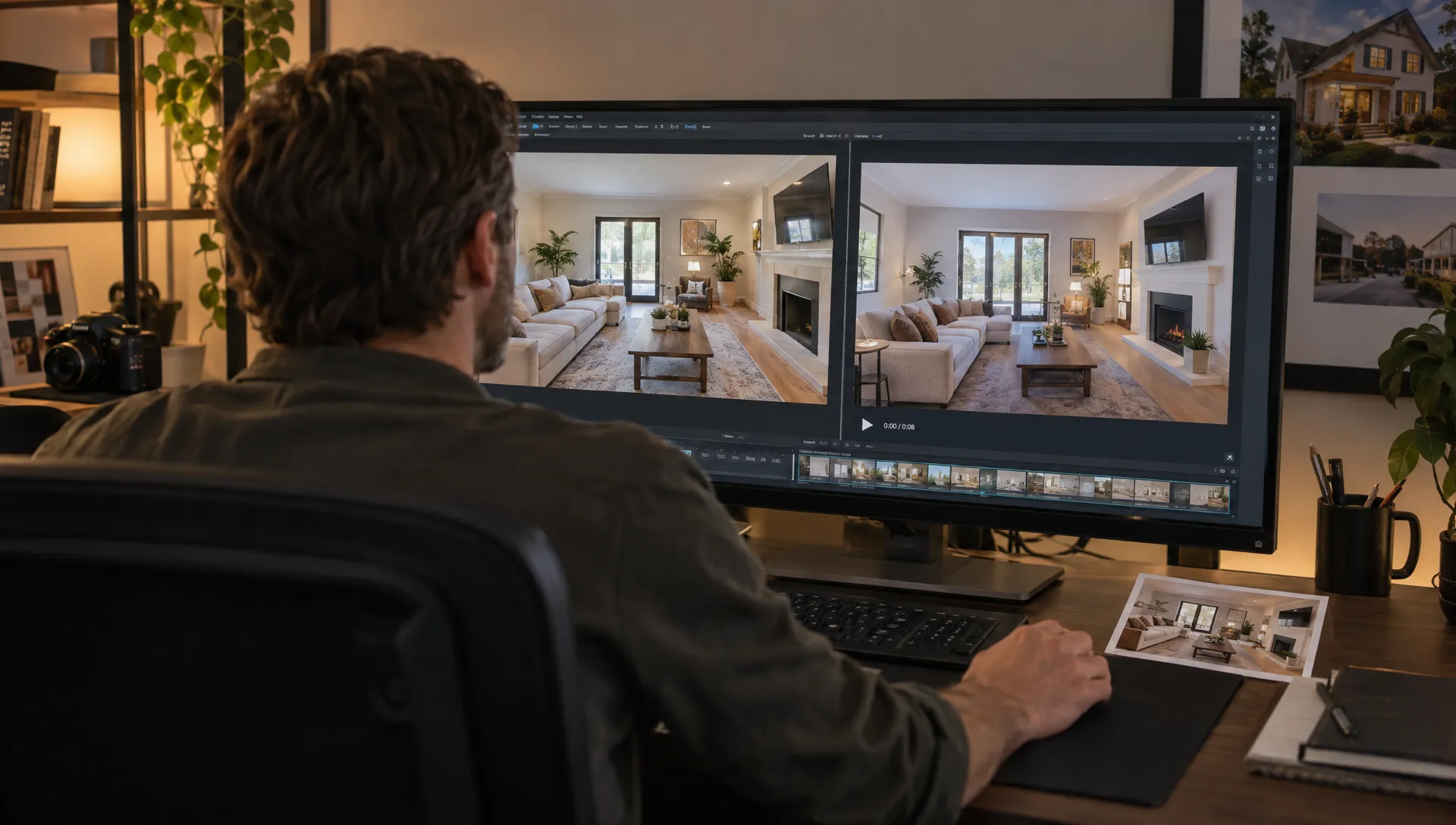
Use captions for spoken content and short text overlays for essential facts. They serve different purposes. Captions make the narration accessible without sound. Overlays let viewers quickly identify the location, property type or number of bedrooms.
Check every caption manually, especially names, figures and abbreviations. Make text readable against both bright windows and dark interiors. Keep it away from the edges, where interface controls or platform crops may obscure it.
You can turn listing photos into video with very little on-screen text. A location label, one or two verified highlights and a clear next step are usually enough for a short edit.
Keep logos small and consistent. Avoid placing a large contact card over the room throughout the video. End with one action, such as “Request the floor plan” or “Arrange a viewing,” using contact details appropriate to the publishing channel.
7. Build vertical and horizontal versions separately
Do not assume one automatic crop will work everywhere. A wide room photograph can lose its doorway, terrace access or kitchen island when converted to a narrow frame.
| Version | Example export size | Typical use | What to check |
|---|---|---|---|
| Vertical, 9:16 | 1080 × 1920 pixels | Full-screen social video | Important features remain visible and text avoids interface areas |
| Horizontal, 16:9 | 1920 × 1080 pixels | Website players, presentations and compatible listing channels | Images remain sharp and captions are readable |
These are practical starting sizes, not universal submission rules. Check each destination's current requirements for aspect ratio, duration, file size and accepted formats.
When you turn listing photos into video for both orientations, reposition every photograph and caption. If a vertical crop hides too much, place the full photograph within the frame rather than stretching it or generating imaginary room edges.
Export the versions from the same verified script so facts stay consistent. Watch both on a phone and a larger screen. For website distribution, plan how to add listing videos to your real estate website without replacing the photo gallery or floor plan.
8. Run a final property-accuracy check
Review the finished file, not only the editing preview. Ask someone familiar with the property to check it against the approved listing details.
- Facts: Confirm the location, room count, price if shown and every spoken claim.
- Images: Check that crops, retouching and generated motion do not misrepresent the home.
- Transparency: Label virtual staging, material alterations and synthetic content appropriately.
- Permissions: Confirm photo rights, music licensing and consent for any cloned voice or likeness.
- Delivery: Test captions, audio, contact details and the requirements of each publishing destination.
Once you turn listing photos into video, keep the approved script and source photographs with the final exports. That makes corrections easier if the price changes or an inaccurate detail is spotted later.
This guide focuses on the no-footage edit. For the wider workflow, from preparing listing information through publication, follow the full real estate video production process.
Frequently asked questions
Can a photo-based video replace a walkthrough? It can introduce the property, but it does not document continuous movement through it. Keep the floor plan and original photographs available. Use filmed footage when buyers need a clearer explanation of connections between spaces.
Do all photographs need AI animation? No. Static photographs with subtle pans or zooms can support a clear, well-paced presentation. Use generated motion only when it adds something useful and passes the accuracy check.
How many photographs should I use? Start with eight to twelve distinct images, then adjust for the property and script. Remove any image that repeats information without helping buyers understand the home.
Create the first version, then review it
To turn listing photos into video with less manual assembly, Diane creates narrated listing videos from photos and property details, with options including AI avatars, voice cloning and social media formats. Start with one approved photo set and a short script. Then apply the same accuracy, disclosure and consent checks before publishing.